
Custom Search

So, for those who are trying to figure out "How do I . . . "
. . . walk around?
You'd think this one would be a no-brainer, but judging by the number of day-old avatars who have trampled me trying to figure it out, maybe not.
Movement is directed by the arrow keys on your keyboard. Up moves you forward, down moves you back, and the left and right keys turn your avatar accordingly. Releasing the keys will bring your avatar to a stop (unless you're on enough of a slope that the physics engine kicks in and causes your avatar to stumble forward until it hits level ground.)
Your movement can be blocked by solid prims and other avatars. This can sometimes be confusing when you've just arrived somewhere and the place isn't completely finished rendering, since a wall that hasn't yet appeared on your screen can be seen through, but not walked through. (Some prims are set as "phantom" so they can be moved through, and they're usually set as translucent as a hint.)
By the way, if you do bump into people, a simple "excuse me" can go a long way. Just sayin'.
. . . fly?
On most keyboards, the "Page Up" and "Page Down" keys will allow you to fly. Pressing "Page Up" again will lift you a little bit higher and the "Page Down" key will cause you to descend. If, like, me, you're on a laptop and said keys are also the arrow keys, you'll need to hold down whatever key is needed to cause it to perform that function (the "fn" key on mine, it may vary by laptop.) Otherwise, the arrow keys will cause you to move forward, backward and turn as they would if you were on the ground.
"Free Flight", for lack of a better term, is slightly limited in how high and how fast you can go. Also, certain parcels of land will have properties set to disallow flight--you can fly over them if you're passing through, but if you land, you're stuck. You can fly a bit higher and faster if you have a scripted object active on your person--whether it's a flying vehicle, rocket boots or a "flight feather" which you can wear.
. . . teleport somewhere?
Teleportation is the number one means of travel in Second Life. As such, there are lots of different ways to do it.
Landmarks are the main way. They're sort of the Second Life equivalent of webpage bookmarks. You can set one up almost anywhere by pressing the little star in your browser window thingy at the top of your screen. More often, you'll pick them up from people, places and things that give them to you. It will show in in your inventory as a globe with the name of the place next to it. Double click and and you'll be asked if you really want to Teleport there. If you do, click "Teleport."
If you look at the map, you can also select Landmarks from a menu, but they have a bad habit of accumulating and getting hard to follow, for some reason. You can also teleport from the map by double-clicking on the map on the place you'd like to be. If you're allowed, you'll teleport there.
You can also get a teleport from someone else . . . or give one. To teleport someone to where you are, pull up their Profile (see below) and click the gear button. A menu will pop up with "Offer Teleport" as an option. (If the option is grayed out, they're probably not around to offer a Teleport to.)
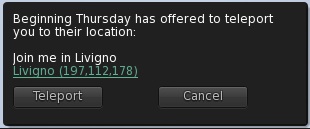
If they're a Friend of yours, you can also offer a teleport from your Contacts list. Just click the "People" button at the bottom of the screen and click the "Friends" tab in the window that comes up. Select the name from the list of friends and click the button with the little gear on it. This will also bring up a menu that includes "Offer Teleport" as an option. When you offer a teleport, a message will pop up, which usually defaults to "Join me in [wherever you are]. This is what they'll see when they get the notice that you're offering a teleport. You can rewrite it, if you like, but most people just leave it as is.
And, of course, if somebody teleports you, you'll get a message asking to accept or decline. Hit "Teleport" and you'll be teleported to where that person is.
. . . talk to people?
If you want to talk to the whole room, just click the Chat button and check to make sure the window that pops up has "(Nearby chat)" highlighted. Then click in the chat line that says "Nearby chat", type what you want to say, and hit Enter. While you're typing, your avatar will usually do a little hands-in-midair thing (as if typing on an invisible keyboard) and clickety-tappity sounds will be heard. If you hear the clickety-tappity sounds and you're not typing anything, it means that somebody else in earshot is typing. What you say (and what other people say) will appear on the the chat window. You can also just hit Enter when the chat window is closed and it will bring it up.
If you miss something, you can scroll back on the chat log. If you want to talk to an individual and not the whole room, you can send that person an Instant Message (IM). Which, of course, brings you to the question "how do I . . ."
. . . send an IM to someone?
If the person is in the room, you can right-click on either the avatar or the name that's floating above their head and select "IM" from the menu that pops up. (You can use Command-click if you're a single button Macintoshy person like me, and just assume the same when I say "right-click" from this point forward.) The Chat window will pop up, this time with a highlighted name for the person you're IMing. Type what you want to say in the chat line and hit Enter. What you said will show up in the window above. If the person responds, you'll see a line that says "[avatar name] is typing..." (sort of the IM equivalent of the clickety-tappity) at the top of the chat window and then when they hit Enter, what they wrote will appear in the window.
If the person is not in the room, you can still IM them. Heck, they don't even have to be inworld at the time! Neat, huh? If you have established the person as a Friend, you can do it from your Friends list (as above.) Just click the "IM" option from the gear menu (or double-click on the name.) A new highlighted name will appear, proceed as above. If the person is offline, type your message as usual. The moment you hit Enter you'll get the message "User not online - message will be stored and delivered later." Note that it will tell you this every single time you hit Enter as long as the person is offline. When the person arrives inworld, they will get the IMs that have accumulated while away. It's my understanding that such IMs are "capped" after a certain number, so try not to ramble too much.
If the individual is not on your Friends list, you can pull up that person's Profile (we'll get to how to do that in a moment) and click the button that looks like an envelope. A menu will pop up, with "IM" the only option. You won't find out if they're on or offline until you hit Enter.
. . . pull up a Profile?
Somehow I figured you'd be asking that. There are a number of ways.
As with IMing, if the person is in the room with you, you can right-click on their avatar or their name and select "Profile" from the menu.
If the person is one of your Friends, you can click their name in your Friends list (see above) and then click the "View Profile" option from the gear menu. You can also click the little icon that looks like an ID card that shows up when you click on the individual name.
If the person is not on your friends list and not in the room, their Profile can still be obtained through the wonders of the Search function. Click the magnifying glass button on the left side of your screen and a browser window will appear. Put in the name of the person you're looking for in the Search box--NOT the browser address box!--and the nearest matches will appear (including, presumably, the person you're looking for.) Click on the name and then click the "Profile" button.